.Net and VisualStudio ALM
Guillaume Rouchon
This user hasn't shared any biographical information
Posts by Guillaume Rouchon
TeamBuild 2010: TFS Build Extensions v1.2
Dec 26th

We just published a new stable version of the Community TFS Build Extensions. For a list of updates see the download page here.
Your feedback and suggestions are welcomed, use the site’s forum for this
Carpe Diem.
MSDays 2011 : Ask the Expert à Paris
Sep 29th
Translate original post with Google Translate

Je serai présent aux MSDays 2011 à Paris le 4 octobre en tant que Ask The Expert (ATE). Si vous avez des questions (notamment autour de Team Foundation Server et Visual Studio
) venez me voir !
Pour vous inscrire c’est ici : http://msdn.microsoft.com/fr-fr/microsoft-days.aspx
Carpe Diem.
TeamBuild 2010: TFS Build Extensions v1.1
Sep 23rd

A quick post to inform you that Mike published yesterday a new stable release of the Community TFS Build Extensions. This release contains some bug fixes and new features.
We intend to continue on a release every 2 or 3 months. Your feedback and suggestions are welcomed, use the site’s forum for this
Carpe Diem.
VS vNext: News on vNext of TFS and VS
Sep 17th
This week was rich in announcement both on the next version of Windows and the next versions of Visual Studio and Team Foundation Server. Here is a short summary of what was said on our favorite development tools:
Cette semaine a été riche en nouvelle tant au niveau de la prochaine version de Windows que des futurs versions de Visual Studio et Team Foundation Server. Voici un petit récapitulatif des annonces faites pour nos outils de développement préférés :
- A preview of Team Foundation Server sur Windows Azure is available. You need a invitation code to subscribe so, if you’re interested, follow the blog of Brian Harry who will certainly propose some more code in the future
Here’s the URL of the service: http://tfspreview.com. - Visual Studio 11 Developer preview and Team Foundation Server 11 Developer preview are available. I’ll come back on those in future posts. Meanwhile you can download them here: http://msdn.microsoft.com/fr-fr/vstudio/hh127353
- If you do not want to mess (or lose time
) with the install of those previews, Brian Keller published a virtual machine ready to use
Here’s the link: http://blogs.msdn.com/b/briankel/archive/2011/09/16/visual-studio-11-application-lifecycle-management-virtual-machine-and-hands-on-labs-demo-scripts.aspx
That’s all for now. I’m going back to my VMs installation to prepare my next posts on TFS 11 and VS 11 installation experience and their new features
Carpe Diem.
TFS 2010: Rename a server – Part 5: the Sharepoint server
Jul 11th
Posts in this series:
- Part 1 : introduction
- Part 2 : the database server
- Part 3 : the Analysis Services server
- Part 4 : the Reporting Services server
- Part 5 : the Sharepoint server
- Part 6 : the TeamFoundation Server server
- Part 7 : the TeamBuild server
In this fourth post we will see what to do to rename the sharepoint server wss.demo.local to wss1.demo.local and make our services work again
Sharepoint
If you have read the previous posts it always the same start : rename the server and restart it.
Warning: i’m not a Sharepoint specialist so they may be easier commands than the one i will explain. If you’re a Sharepoint expert and you see a problem, don’t hesitate to post a constructive feedback
We will first update the Sharepoint configuration. We will use the same command line we used when renaming the database server (but using the Sharepoint server name
):
- Open a command prompt.
- Run the following command:
"%commonprogramfiles%\Microsoft Shared\web server extensions\12\BIN\stsadm" -o renameserver -oldservername wss -newservername wss1
- Restart IIS using iisreset /noforce command.
Now that the Sharepoint configuration is updated we will need to update the internal and public URLs mapping for each web application:
- Open a web browser.
- Navigate to the URL http://wss1:17012
- Click on the Operations tab, then on the Alternate access mappings link:

- Click on the web application internal URL link:

- Update the URL protocol, host and port field:

- Click the OK button at the bottom of the page.
- You will need to repeat the above steps for all web applications..
Our Sharepoint is now updated we will now update TFS so that the team project portals point to the new address.
TeamFoundation Server
Before any thing flush the local DNS cache using the command line ipconfig /flushdns.
The only way to update TFS is by using the administration console:
- Start the admin console.
- Select the Sharepoint Web Applications node, select the http://wss entry in the list and click the Change:

- In the dialog window, on the General tab:
- Update the Friendly Name field. (optionnal)
- Update the Web Application URL and Central Administration URL fields with the new Sharepoint server address:

- Click the OK button.
Your installion is back online using the new Sharepoint server name. Next time will rename the TFS server. Since the server is at the heart of the installation we will have some work
Carpe Diem
TeamBuild 2010: TFS Build Extensions v1
Jul 5th

Yesterday was released the first stable version of the Community TFS Build Extensions. It’s a set of new activities for TeamBuild 2010 so that you can customize your build process. Here are some of the provided activites:
- File
- Zip
- AssemblyInfo
- CodeMetrics
- RoboCopy
- NUnit
- HyperV
- TfsSource
- …
A big thanks to Mike Fourie the coordinator and principal contributor on the projet and to all other contributors (including me
).
We welcome your feedback and suggestions. It’s a start and we hope to release new versions every 2 or 3 months.
Carpe Diem.
I’m on Twitter
Jun 28th
TFS 2010: Rename a server – Part 4: the Reporting Services server
Jun 27th
Posts in this series:
- Part 1: introduction
- Part 2: the database server
- Part 3: the Analysis Services server
- Part 4: the Reporting Services server
- Part 5 : the Sharepoint server
- Part 6: the TeamFoundation Server server
- Part 7: the TeamBuild server
In this third post we will see what to do to rename the reporting services server rs.demo.local to rs1.demo.local and make our services work again
Reporting Services
As for the Analysis Services server the only thing to do is rename the server and restart it. Now we’ll need to update dependant components:
- TFS
- Sharepoint
TeamFoundation Server
The only way to update TFS is by using the administration console:
- Start the admin console.
-
Select the Reporting node and click the Edit button:

Note: a popup will appear saying the jobs should be stopped before editing the values. Accept to stop the jobs.. - In the dialog window select the Reports tab:
- Update the Server field.
- Click the Populate URLs button to automatically fill the Web Service and Report Manager fields.
- Specify the Username and Password fields with the account information that will be used to read the cube data:

- Click the OK button.
- Click on Start Jobs to restart the jobs:

The Tfs_Configuration database is now updated. Let’s go and update Sharepoint.
Sharepoint
The dashboards in Sharepoint are displaying reports from Reporting Services. The reports’addresses are not hardcoded (thankfully
), the dashboards use a special page ”TfsRedirect.aspx” which will take data from the TFS server and redirect to the correct page. Those data are cached on the Sharepoint server, we must clear this cache so that the next call to TfsRedirect.aspx will get the new Reporting Services server name:
- Open a web browser.
- Go to “http://wss/sites/DefaultCollection/<TeamProject>/_layouts/TfsRedirect.aspx?tf:Type=ReportList&tf:ClearCache=1&tf:Test=1” (without the quotes) and replacing <TeamProject> with one of your team project name.
Here are some explanation on the url:
- The parameters starting with tf: are used by the TfsRedirect.aspx page. All other parameters are given to the redirected page. In our case there are no parameter to redirect.
- The tf:Type parameter indicates the redirection type. In our case we use the redirection to the report list page. We use this type because no specific parameters are required.
- The tf:ClearCache=1 parameter indicates to clear the TFS cache in Sharepoint.
- The tf:Test=1 parameter indicates the we only want to test the redirection and will display debugging data (settings, cached data, …) instead of redirecting to another page.
By using the Test parameter you can verify that the reporting server url is updated.
Your installion is back online using the new Reporting services server name. Next time will rename the Sharepoint server
Carpe Diem
TFS 2010: Build Customization Guide
Jun 20th

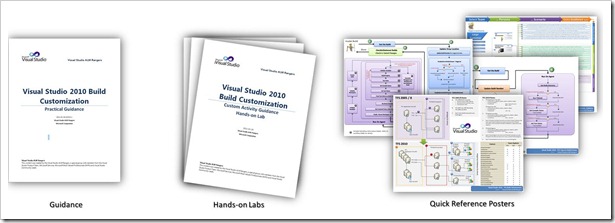
The VisualStudio ALM Rangers just published their build customization guide!
For more infos, see the VisualStudio ALM Rangers blog or the projet’s codeplex site.
Carpe Diem.
TFS 2010: Rename a server – Part 3: the Analysis Services server
Jun 14th
Posts in this series:
- Part 1: introduction
- Part 2: the database server
- Part 3: the Analysis Services server
- Part 4: the Reporting Services server
- Part 5 : the Sharepoint server
- Part 6: the TeamFoundation Server server
- Part 7: the TeamBuild server
In this second post we will see what to do to rename the analysis services server as.demo.local to as1.demo.local and make our services work again
Analysis Services
We start with the same step, rename the machine and restart it. And that’s all for this server
If you remember the infrastructure schema (if no, go read this series intro), two components use the Analysis Services server:
- TFS
- Reporting Services
We will start by updating TFS.
TeamFoundation Server
To update TFS we have two options:
- Use the TFS admin console.
- Use the TfsConfig command line.
We will see those two options and start with the admin console:
- Start the TFS admin console.
- Select the Reporting node and click on Edit:

Note: a popup will appear saying the jobs should be stopped before editing the values. Accept to stop the jobs. - A dialog window will open, select the Analysis Services tab:
- Update the Server field.
- Specify the fields Username and Password with the account information that will be used to read the cube data:

- Click on OK.
- Click on Start Jobs to restart the jobs:

The Tfs_Configuration database is now updated. By using the console, the connection string for the data source Tfs2010OlapReportDS on the Reporting Services server is also updated, so no more work in this case
If you prefer using the command line, here what to do:
- Open a command prompt.
- Run the following command to remap the cube used by TFS:
"%programfiles%\Microsoft Team Foundation Server 2010\Tools\tfsconfig" remapdbs /databasename:db1;Tfs_Configuration /sqlinstances:db1 /analysisinstance:as1 /analysisdatabasename:Tfs_Analysis
This will only update the Tfs_Configuration database, you’ll now need to manually update the Tfs2010OlapReportDS datasource connection string.
Reporting Services
If you haven’t used the TFS admin console, you need to update the Tfs2010OlapReportDS datasource:
- Open a web browser.
- Open the page http://rs/ReportServer
- Click on the data source Tfs2010OlapReportDS :

- Update the fields Connection String and Password (changing the connection string makes the password become invalid, just retype it):

- Click on the Apply button at the bottom of the page.
Your installion is back online using the new Analysis services server name. Next time will rename the Reporting Services server
Carpe Diem.